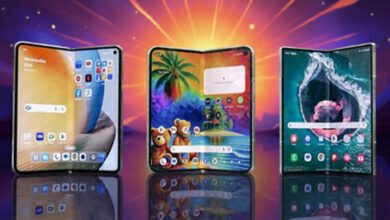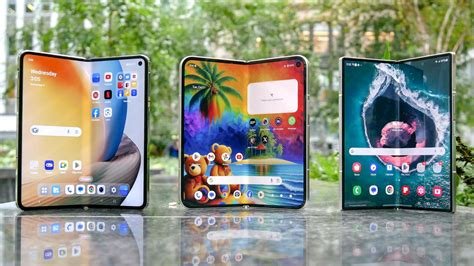
Pixel 10 Pro Customization represents the pinnacle of personal expression on a mobile device. Google’s Pixel line, renowned for its clean software and powerful hardware, provides an incredibly fertile ground for users to transform their smartphone from a generic tool into a unique digital extension of their personality. With the Pixel 10 Pro, you have access to a blend of Google’s thoughtful design choices and the open, flexible nature of Android. This guide will walk you through every layer of customization, from the surface-level tweaks to deep system modifications, empowering you to make your Android look and feel truly amazing.
The Foundation: Mastering the Stock Android Experience
Before diving into third-party apps, it’s crucial to explore the powerful customization tools built directly into the Pixel 10 Pro’s software. Google’s Material You theming engine is the star of the show. It dynamically extracts colors from your wallpaper and applies them intelligently across the system interface, including the notification shade, settings menu, widgets, and even supported apps. To leverage this, go to Settings > Wallpaper & style. Here, you can choose a wallpaper and then select from a palette of complementary colors generated just for you. You can also toggle between different icon shapes (e.g., Teardrop, Squircle, Circle) for a cohesive look.
The home screen is your canvas. A long press on any empty area activates the launcher settings. You can adjust the grid size for more or fewer icons, enable the handy At a Glance widget for calendar and weather, or hide the search bar for a minimalist look. Don’t forget about the app drawer; you can set it to scroll vertically or use the classic horizontal paginated style.
Widgets: Function Meets Form
Widgets are essential for both utility and style. The Pixel 10 Pro comes with a suite of elegant, first-party widgets. The Clock widget offers multiple designs, the Google Keep widget lets you see notes at a glance, and the At a Glance widget is highly informative. To add a widget, long-press the home screen, select Widgets, and browse the categories. Resizing widgets by dragging their edges is key to creating a balanced layout.
Advanced Pixel 10 Pro Customization with Third-Party Launchers
For those who find the stock Pixel Launcher limiting, third-party launchers unlock a new dimension of Pixel 10 Pro Customization. Apps like Nova Launcher, Action Launcher, and Microsoft Launcher offer granular control over every aspect of the home screen.
| Launcher | Best For | Key Customization Features |
|---|---|---|
| Nova Launcher | Power users & granular control | Subgrid positioning, icon size scaling, custom gesture controls (e.g., double-tap to sleep), extensive animation tweaks. |
| Action Launcher | Quick access & unique aesthetics | Shutters (tap an icon to open a widget), Covers (folder replacements), dynamic themeing from wallpapers. |
| Microsoft Launcher | Productivity & Windows integration | Feed panel with calendar, notes, and recent activities, seamless PC continuity features. |
Installing a new launcher is simple: download from the Play Store, set it as your default home app when prompted, and begin exploring its settings. You can often backup and restore your layouts, making experimentation risk-free.
Icon Packs: The Art of the Detail
Icons are the most visible elements on your screen. Replacing them with a cohesive icon pack can dramatically elevate your phone’s aesthetic. The Play Store hosts thousands of packs, from minimalist monochrome sets to vibrant, detailed designs. Popular choices include Lines, Whicons, Flight, and CandyCons. After purchasing and installing an icon pack, apply it through your launcher’s settings (look for Icon Pack or Appearance options). Most launchers allow you to change icons individually, perfect for those few apps not covered by the pack.
KWGT and Live Wallpapers: Dynamic Personalization
For the ultimate custom interface, KWGT Kustom Widget Maker (and its sister app, KLWP for live wallpapers) is a powerhouse. It’s not a simple plug-and-play app; it’s a toolkit that lets you design your own widgets and full-screen live wallpapers from scratch or by modifying thousands of community-created presets. You can display system information (battery, RAM, storage), music players, weather data, and calendar events in endlessly creative visual formats. The learning curve is steep, but the results are unparalleled, making it a cornerstone of advanced Pixel 10 Pro Customization.
Live wallpapers from apps like Wallpaper Engine (with its companion Android app) or Muzei can add subtle motion or automatically cycle through your curated art collection, keeping your home screen fresh and engaging.
System-Wide Theming with Repainter and Root
While Material You is excellent, you might want to manually choose your accent colors or theme apps that don’t yet support dynamic theming. For non-rooted devices, apps like Repainter (using Shizuku) can push the boundaries of the theming engine. For rooted Pixel 10 Pro devices, the possibilities explode. Modules for Magisk like AOSP Mods or system-level Substratum themes (on compatible ROMs) can recolor every part of the interface, from the quick settings toggles to the volume panel, achieving a level of visual harmony that stock Android can’t match. Warning: Rooting voids your warranty and carries a risk of bricking your device if done incorrectly.
Auditory and Haptic Personalization
Customization isn’t just visual. The Pixel 10 Pro allows you to change system notification sounds, ringtones, and alarm tones. Consider sourcing elegant or unique sounds from Zedge or creating your own. More importantly, you can adjust the haptic feedback strength in Settings > Sound & vibration > Vibration & haptics. A crisply tuned haptic engine makes interactions feel more tangible and premium.
Organizational Strategies for a Clean Look
A beautiful setup is also a functional one. Use folders wisely—group apps by category (Social, Finance, Games) or color for a rainbow effect. Many launchers support hiding apps from the drawer, perfect for rarely used system tools. Employ blank widgets or spaces (Nova Launcher’s “Widget” that is just empty space) to create intentional negative areas and visual breathing room. The goal is to reduce clutter and create a home screen that is both stunning and efficient.
Backup and Iteration: The Customizer’s Safety Net
As you invest time in your setup, backing it up is crucial. Most third-party launchers have built-in backup functions to save your layout, settings, and icon choices to cloud storage or local files. For rooted setups, use Titanium Backup or Swift Backup for comprehensive data saving. Remember, Pixel 10 Pro Customization is a journey, not a destination. Your tastes will evolve, new apps and tools will emerge, and part of the fun is regularly refreshing your device’s look.
Frequently Asked Questions
- Will custom launchers or icon packs slow down my Pixel 10 Pro?
Generally, no. Most well-coded launchers and icon packs have a negligible impact on performance. Heavy, animated live wallpapers or overly complex KLWP setups may consume more battery. - Do I need to root my phone for good customization?
Absolutely not. The vast majority of customization—launchers, icon packs, widgets, Material You theming—requires no root. Rooting is only for deep, system-level changes. - Can I revert back to the stock Pixel look easily?
Yes. Simply set the Pixel Launcher as your default home app again, apply your original wallpaper, and change your icon shape in Wallpaper & style settings. Any third-party launcher settings will be saved if you wish to return to them later. - Are there any risks in using apps from the Play Store for customization?
Stick to well-reviewed, popular apps from reputable developers. The main risk is typically just a poorly designed app that might crash. Avoid granting unnecessary permissions. - How can I find inspiration for my home screen setup?
Platforms like Reddit (r/AndroidThemes), YouTube (channels like “HowToMen”), and Instagram (search #androidthemes) are fantastic sources of inspiration and tutorials.