Unlocking Global Conversations: A Complete Guide to Using the Samsung S26 Ultra’s AI Live Translate

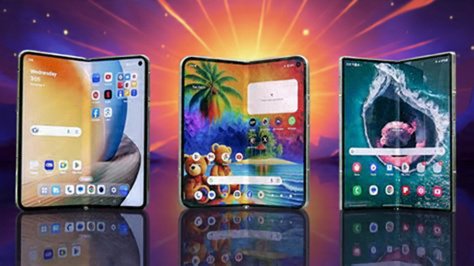
Samsung S26 Ultra AI Live Translate is not merely a feature; it is a paradigm shift in how we communicate across linguistic divides. Integrated deeply into the Galaxy S26 Ultra’s operating system and powered by advanced on-device and cloud-based AI, this tool transforms your smartphone into a real-time polyglot companion. Whether you’re navigating a crucial business call with an international partner, deciphering a foreign menu, or chatting with a loved one in their native tongue, the AI Live Translate feature promises to make the experience seamless and intuitive. This comprehensive guide will walk you through every facet of using this groundbreaking technology, ensuring you can leverage its full potential to connect with the world without barriers.
Understanding the Foundation of AI Live Translate
Before diving into the “how-to,” it’s essential to grasp what makes the Samsung S26 Ultra AI Live Translate so powerful. Unlike simple dictionary apps, this is a context-aware, real-time translation system. It leverages Samsung’s proprietary Gauss AI model, combined with robust hardware like the Snapdragon 8 Gen 4 chip, to process language locally on your device for speed and privacy, while tapping into cloud resources for complex translations and rare languages. The magic lies in its integration—it works within the native Phone app, the Samsung Messages app, and even as an overlay in supported third-party applications, providing translations almost instantaneously.
Key Prerequisites and Setup
To begin your journey with the Samsung S26 Ultra AI Live Translate, a few initial steps are required. First, ensure your device is updated to the latest version of One UI (based on Android 15 or later). The feature is a core part of the Galaxy AI suite. You will need a Samsung account, and for full functionality, a stable internet connection is recommended, though core features work on-device for popular languages.
Initial Activation Path: Go to Settings > Advanced Features > Advanced Intelligence (Galaxy AI). Here, you’ll find a toggle for “Live Translate.” Ensure it is switched on. You may be prompted to download specific language packs for offline use—a highly recommended step for travelers. These packs, typically 200-400MB per language, enable translation without cellular data or Wi-Fi.
How to Use AI Live Translate in Phone Calls
This is arguably the most impressive application of the Samsung S26 Ultra AI Live Translate. It allows for a natural, spoken conversation where both parties hear each other in their own language.
- Initiate a Call: Open the native Phone app and dial a number or select a contact.
- Activate Live Translate: Once the call connects, tap the new “AI Live Translate” button (often represented by a stylized “A” and sound waves) that appears on your call screen.
- Select Languages: A panel will slide up. Here, you set your spoken language and the language your caller will speak. For example, set “English” for you and “Spanish” for the caller.
- Converse Naturally: Speak normally. The AI will transcribe your speech, translate it, and then synthesize a spoken translation for the person on the other end. When they reply, their speech is translated back into your language, played audibly for you, and also displayed as text on your screen.
| Step | Action | Visual/UI Cue |
|---|---|---|
| 1 | Start a call | Standard dialer interface |
| 2 | Tap AI button | “AI Live Translate” icon appears on call screen |
| 3 | Choose languages | Dual dropdown menus for “My Language” & “Other Language” |
| 4 | Speak & listen | Real-time transcription and robotic, but clear, voice translation |
The system creates a transcript of the entire translated conversation, which you can review or save after the call ends—a fantastic feature for remembering details from an international business discussion.
Mastering Real-Time Text Translation in Messages
For text-based communication, the Samsung S26 Ultra AI Live Translate integrates seamlessly into the Samsung Messages app. It works for both SMS and RCS chats.
- Open a Conversation: Launch Samsung Messages and select a chat thread.
- Enable Translation: Tap the three-dot menu in the chat window and select “Enable AI Live Translate.” You can also press and hold the send button to activate it temporarily.
- Automatic Detection: The AI will typically auto-detect the foreign language. You can also manually set the translation direction in the chat settings.
- Bidirectional Flow: As messages arrive, they are instantly translated and displayed in your language. When you type a reply in your language, you will see the translated version (in the recipient’s language) above the send button before you send it. This allows you to confirm accuracy.
This creates a fluid experience where you read everything in your native language, yet your contacts receive messages in theirs. It feels like magic, effectively removing the language barrier from text conversations.
Utilizing the Interpreter Mode for Face-to-Face Talks
Perfect for travel, in-person meetings, or helping someone at a counter, the Interpreter Mode is a standalone feature of the Samsung S26 Ultra AI Live Translate suite.
- Access the Mode: You can find it by swiping down for the Quick Panel and tapping the “Interpreter” icon, or by searching for it in the Settings or App Drawer.
- Choose Layout: You can select a split-screen view (ideal for handing the phone back and forth) or a voice-focused view where you tap to speak for each side.
- Speak and Tap: In split-screen mode, each side of the screen is dedicated to a language. Tap the microphone on your side, speak, and the translation appears audibly and textually on the other side. Your guest can then tap their mic to reply.
| Mode | Best For | How It Works |
|---|---|---|
| Split-Screen | Handing phone to another person (e.g., at a hotel desk, taxi) | Two distinct halves; tap mic on respective side to speak. |
| Conversation (Voice-Focused) | Holding the phone between two people (e.g., a business meeting) | Single interface; tap alternating mic buttons for each speaker. |
| Manual Text Input | Noisy environments or precise text translation (e.g., reading a sign) | Type text into a field for instant translation display. |
Leveraging Instant Translation in Camera and Other Apps
The power of the Samsung S26 Ultra AI Live Translate extends beyond direct communication. Using the Camera app or the “Tap to Translate” overlay, you can translate the world around you.
- Camera Translation: Open the Camera app, point it at text—a restaurant menu, a street sign, a document—and tap the “T” AI icon. The viewfinder will instantly replace the foreign text with a translation in your chosen language. You can also take a photo and then select areas to translate.
- Tap to Translate (System-Wide Overlay): This is a game-changer. With this feature enabled in Galaxy AI settings, whenever you copy text in *any app—be it a social media post, an email, or a news article—a small floating bubble appears. Tapping it instantly shows a translation pop-up without ever leaving the app you’re in.
Optimizing Your AI Live Translate Experience
To get the most out of the Samsung S26 Ultra AI Live Translate, consider these pro tips:
- Download Language Packs: For travel, download the necessary language packs via Settings > Advanced Features > Advanced Intelligence > Live Translate > Manage Downloadable Languages. This ensures speed and data privacy.
- Use a Clear Voice: In call and interpreter modes, speak clearly at a moderate pace for best accuracy.
- Review the Transcript: After calls or interpreter sessions, save the transcript for important information like addresses or order numbers.
- Provide Feedback: The AI learns. If a translation seems off, use the “Suggest better translation” option that often appears to help improve the system.
Overcoming Common Challenges with Samsung S26 Ultra AI Live Translate
While revolutionary, the technology isn’t flawless. Heavy accents, poor network connections, and highly idiomatic phrases can sometimes cause hiccups. If you encounter issues, try simplifying your sentence structure, ensure a good internet connection for cloud processing, or switch between voice and text input in Interpreter Mode. Remember, it’s a tool to facilitate understanding, not replace human nuance entirely.
Frequently Asked Questions
- Is Samsung S26 Ultra AI Live Translate free to use? Yes, the core AI Live Translate features are part of the Galaxy AI suite included with the Samsung S26 Ultra. However, Samsung’s policy states that these AI features are guaranteed to be free until at least the end of 2025. Some advanced cloud-dependent features may potentially have usage limits or fees after that period, but on-device translation is expected to remain free.
- Does it work without an internet connection? Yes, for languages you have downloaded offline packs for. Phone call translation, interpreter mode, and camera translation for those languages will function offline. Real-time translation of rare languages or complex idioms may require a connection.
- How many languages are supported? The Samsung S26 Ultra AI Live Translate supports over 20 languages at launch, including major ones like English, Spanish, French, German, Chinese, Japanese, Korean, Arabic, and Hindi. The list is regularly expanded via software updates.
- Is my conversation data private? Samsung emphasizes on-device processing for privacy. When you use offline languages, translation occurs entirely on your phone. For online translations, data is sent securely to the cloud but is not stored long-term or used to identify you, according to Samsung’s privacy policy.
- Can I use it on WhatsApp or other messaging apps? The full bidirectional, in-chat translation currently works natively only in the Samsung Messages app. However, you can use the “Tap to Translate” overlay feature to instantly translate any text you copy from WhatsApp, Telegram, or any other application.
- How accurate is the translation? The accuracy is very high for common conversational phrases and business language, thanks to context-aware AI. It may struggle with heavy slang, poetry, or highly technical jargon. It’s best suited for facilitating understanding rather than translating sensitive legal documents.
In conclusion, the Samsung S26 Ultra AI Live Translate is a transformative tool that redefines the smartphone as a universal communicator. By mastering its various modes—from real-time call translation to the system-wide “Tap to Translate” overlay—you empower yourself to travel, work, and connect with a confidence previously reserved for polyglots. As with any AI tool, it works best with clear input and realistic expectations, but its ability to dissolve language barriers in real-time is nothing short of remarkable. Embrace this feature, and let your Samsung S26 Ultra become your passport to a world without linguistic borders.