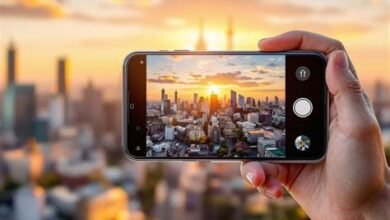
iPhone 17 Pro Max video settings are the gateway to unlocking the true cinematic potential of Apple’s most advanced smartphone camera system. With the introduction of the new A19 Pro chip, enhanced sensor-shift stabilization, and groundbreaking computational video features, the iPhone 17 Pro Max is more than a phone—it’s a professional filmmaking tool in your pocket. However, the sheer depth of its capabilities can be overwhelming. This comprehensive guide is designed to cut through the complexity. We will walk you through the essential iPhone 17 Pro Max video settings, explaining not just the “how,” but the “why,” empowering you to capture footage that stands shoulder-to-shoulder with professional cameras. By meticulously configuring these options, you transform your device from a point-and-shoot recorder into a customizable, powerful video production studio.
Foundational Camera App Configuration
Before diving into advanced formats, it’s crucial to set a solid foundation within the native Camera app. The iPhone 17 Pro Max video settings here dictate your baseline shooting experience. Start by opening the Settings app, scrolling to “Camera,” and then selecting “Record Video.” This is your control center. For the highest quality capture, always select the maximum resolution and frame rate your project requires, such as 4K at 60fps. However, be mindful of storage: one minute of 4K/60fps ProRes footage can consume several gigabytes. Crucially, enable “HDR Video” (Dolby Vision) for a wider dynamic range and more lifelike colors—it’s a signature strength of the iPhone. For greater creative control, switch “Lock Camera” to off, allowing you to change lenses mid-recording. Finally, under “Camera” settings, turn on “Grid” for rule-of-thirds composition and “Level” to keep your horizons straight, fundamental habits for professional-looking shots.
Mastering Advanced Formats: ProRes, Log, and Codecs
The professional heart of the iPhone 17 Pro Max video settings lies in its support for advanced acquisition formats. These are the tools that provide the flexibility needed for serious color grading and post-production.
Apple ProRes: The Editor’s Choice
ProRes is a high-quality, intermediate codec that retains immense detail and color information, making it far superior to standard H.264/HEVC for editing. To enable it, go to Settings > Camera > Formats and toggle “Apple ProRes.” You can then set a default ProRes format (like ProRes 422 HQ) in the Record Video menu. When you open the Camera app, a ProRes icon (a film slate) will appear; tap it to activate. Use ProRes when you plan on extensive color correction, compositing, or when your project demands the absolute highest quality master. Remember, it requires fast external storage (like an SSD connected via USB-C) for recordings above 1080p/30fps.
Apple Log: Unleashing Dynamic Range
The most significant upgrade for colorists is the inclusion of a true Apple Log encoding profile. Log (logarithmic) footage captures an incredibly flat, desaturated image that preserves the maximum dynamic range from the sensor—preventing blown-out highlights and crushed shadows. To enable Apple Log, go to Settings > Camera > Record Video and scroll to the “LOG ENCODING” section. Toggle it on. You can shoot Log in standard video modes or, for maximum fidelity, combine it with ProRes. Shooting in Log is non-negotiable for projects where you need absolute control over the final look in post-production software like DaVinci Resolve or Final Cut Pro. It provides the cleanest, most malleable image data for grading.
| Format | Best Use Case | Storage Impact | Post-Production Flexibility |
|---|---|---|---|
| HEVC/H.264 (Standard) | Social media, quick edits, direct sharing. | Low | Low |
| ProRes 422 | Professional editing, multi-cam projects, broadcast. | Very High | Very High |
| Apple Log + ProRes | Cinematic projects, high-end commercials, maximum color grading. | Extreme | Maximum |
Optimizing Cinematic and Action Modes
The iPhone 17 Pro Max video settings extend beyond raw capture into intelligent, creative modes. Cinematic Mode, now enhanced with 4K/60fps support and more natural depth detection, simulates shallow depth-of-field (bokeh). For the best results, tap your subject to set focus before recording. You can lock focus and exposure by pressing and holding on the screen. In post-production (in the Photos app or iMovie), you can adjust the focus point and f-stop (aperture) even after shooting, offering remarkable creative freedom. For action shots, the improved Action mode provides incredible stabilization for handheld, moving footage. It works best in bright light, as it crops the sensor slightly. Access it by swiping to “Video” in the Camera app and tapping the shaky-hand icon. Use it for smooth shots while running, biking, or in a moving vehicle.
Audio, Stabilization, and Accessory Settings
Great video is nothing without great audio. In the Camera app, before you hit record, check the audio levels meter on the side. The iPhone 17 Pro Max’s improved beamforming microphones are excellent, but for interviews or narrative work, connect an external microphone via the USB-C port. In Settings > Camera > Record Video, ensure “Stereo Sound” and “Wind Noise Reduction” (context-dependent) are enabled. For stabilization, the iPhone 17 Pro Max offers a hierarchy: Standard (sensor-shift) is always on and excellent. “Action Mode” is for extreme motion. For the steadiest possible shots, consider using a gimbal, but often, the built-in stabilization is sufficient. If you use an external SSD for ProRes recording, format it to APFS or ExFAT via a Mac or PC for optimal performance and compatibility.
Pro Workflow: From Shoot to Edit
Configuring your iPhone 17 Pro Max video settings is only half the battle; a professional workflow ensures your footage reaches the edit bay intact. First, always shoot with a storage plan. For ProRes Log, this means a connected, high-speed SSD. Use the built-in storage for standard formats. Second, manage your white balance and exposure manually while shooting. Tap and hold on the screen to lock AE/AF, then use the slider to adjust exposure. For Log footage, use the on-screen histogram (enable in Settings) to expose to the right (ETTR) without clipping highlights. Third, transfer footage via USB-C directly to your computer or a NAS—don’t rely on AirDrop for large ProRes files. Finally, when importing into your editor, apply the correct Apple Log to Rec. 709 LUT as a starting point for color grading, transforming your flat Log image into a vibrant, balanced one.
Frequently Asked Questions
- What is the single most important iPhone 17 Pro Max video setting for quality? Shooting in Apple Log, especially when combined with ProRes, provides the highest dynamic range and post-production flexibility, making it the top choice for professional work.
- Do I need an external SSD to use ProRes? Yes, for resolutions above 1080p at 30fps, the system requires a connected, high-speed external storage device due to the massive file sizes.
- Can I use Cinematic Mode and Apple Log together? No, these are separate capture modes. Cinematic Mode uses computational depth data for its effect, while Log is a flat color profile for dynamic range. Choose based on your creative need.
- How do I reduce grain in low-light video? Ensure you are not underexposing. Use the exposure slider to brighten the scene, and consider shooting in standard HDR mode instead of Log in very dark conditions, as Log can show more noise.
- What’s the best frame rate for a cinematic look? 24 or 25 frames per second (fps) is traditionally cinematic. The iPhone 17 Pro Max offers 24fps in its settings, which provides that classic film motion blur.
- Should I always use the highest resolution? Not necessarily. Consider your delivery platform. If your final video is for social media, 4K might be overkill. 4K is best for projects viewed on large screens or that require cropping in post.