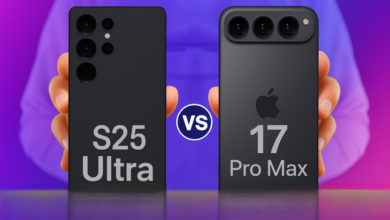
Mastering the Lens: The Definitive Guide to the Best Camera Settings for Your New iPhone 17 Pro Max

The best camera settings for iPhone 17 Pro Max are not a one-size-fits-all formula, but a personalized toolkit that unlocks the staggering potential of Apple’s most advanced mobile imaging system. With its revolutionary quad 48MP sensor array, enhanced Photonic Engine, and next-generation computational photography, the iPhone 17 Pro Max is a pocket-sized studio. However, its default settings are designed for simplicity. To truly elevate your photography and videography from great to gallery-worthy, you must dive into the settings. This comprehensive guide will walk you through every essential adjustment, explaining not just the “how,” but the “why,” empowering you to capture the world exactly as you envision it.
Foundational Settings: Building Your Photography Base
Before exploring advanced modes, ensure your foundation is solid. Navigate to Settings > Camera to configure your shooting environment. First, enable “Grid.” This overlays a rule-of-thirds grid on your viewfinder, an indispensable tool for composing balanced, dynamic shots. For maximum flexibility, set “Record Video” and “Record Slo-mo” to the highest resolutions your storage can accommodate—Apple ProRes 4K at 60fps and 1080p at 240fps, respectively. Crucially, switch “Preserve Settings” on for Camera Mode, Creative Controls, and Exposure Adjustment. This ensures the iPhone remembers your last used settings (like Portrait mode or a specific filter), rather than resetting to defaults every time you close the app.
Understanding and Setting the Formats
The iPhone 17 Pro Max offers powerful format options that dramatically affect image quality and editing latitude.
| Format | Best For | Key Setting | Storage Impact |
|---|---|---|---|
| HEIF Max (48MP) | Everyday high-resolution photos with efficient file sizes. | Settings > Camera > Formats > Photo Mode > HEIF Max | Moderate (5-8MB per photo) |
| Apple ProRAW Max | Professional editing, maximum detail and dynamic range. | Enable in Camera app toolbar (icon with crossed lines). | High (75-100MB per photo) |
| ProRAW Default | Balancing quality and storage; uses 24MP processing. | Settings > Camera > Formats > ProRAW Default (12 or 24MP) | Moderate to High (25-40MB) |
| HEVC / H.264 | Efficient video storage (HEVC) or maximum compatibility (H.264). | Settings > Camera > Formats > Video Recording | Varies |
For most enthusiasts seeking the best camera settings for iPhone 17 Pro Max, keeping HEIF Max on for daily use and toggling ProRAW Max only for critical shots is the ideal strategy.
Mastering the Pro Camera Modes
The true power of the iPhone 17 Pro Max is harnessed through its Pro modes, giving you DSLR-like control.
Pro Mode: Taking Manual Control
Accessible by swiping the mode dial to “PRO,” this mode is non-negotiable for serious work. Here you control:
- Shutter Speed: Use fast speeds (1/500s+) to freeze action like sports or splashing water. Use slow speeds (1/4s to 30s) with a tripod for silky waterfalls or light trails.
- ISO: Keep ISO as low as possible (e.g., 50-200) in bright light for noise-free images. Increase it (800-3200) in low light, but be mindful of introduced grain.
- Manual Focus: Slide the focus distance ruler for precise focus, essential for macro shots or creative blur.
- White Balance: Manually set the color temperature (in Kelvins) to ensure accurate colors under mixed lighting.
Finding the best camera settings for iPhone 17 Pro Max in Pro Mode is about balance. A typical daylight portrait might use ISO 100, shutter speed 1/250s, and a white balance of 5500K.
Portrait Mode: Beyond the Basics
The iPhone 17 Pro Max’s LiDAR scanner and A19 Pro chip enable stunning depth control. After taking a portrait, always edit the f-stop (aperture simulation) in the Photos app. Lower f-numbers (f/1.4-f/2.8) create a very soft, blurred background (bokeh), perfect for isolating a subject. Higher f-numbers (f/8-f/16) bring more of the background into focus. Experiment with the revamped Studio Lighting effects for dramatic, professional-grade highlights and shadows.
Optimizing Video for Cinematic Excellence
The iPhone 17 Pro Max is a formidable cinema camera. Start by enabling “Action Mode” stabilization for incredibly smooth handheld footage, even in 4K. For the ultimate in creative control, use Cinematic Mode. This allows you to rack focus between subjects and, crucially, adjust the depth-of-field effect after shooting. In settings, set Cinematic Mode to record at 4K 30fps for the best balance of quality and the signature 24fps “cinematic” look when played back.
For color graders and editors, turning on Apple Log Encoding (found in Settings > Camera > Record Video) is a game-changer. It captures a flat, low-contrast image profile that preserves immense detail in shadows and highlights, providing maximum flexibility for color grading in apps like DaVinci Resolve or Final Cut Pro.
Advanced Techniques and Hidden Gems
Leverage the unique hardware of the iPhone 17 Pro Max. The new Periscope Telephoto lens offers an unprecedented 10x optical zoom. For the sharpest telephoto shots, ensure you have ample light and tap to lock focus. Use the Photographic Styles (swipe up in Camera) to apply a personalized color and tone profile that sticks to all your photos—choose “Rich Contrast” for punchier images or “Warm” for consistent golden-hour tones.
For long-exposure magic, take a Live Photo and then swipe up on it in your gallery, selecting “Long Exposure” to transform flowing water or city traffic into ethereal streaks of motion. This is one of the most creative best camera settings for iPhone 17 Pro Max techniques, requiring no extra apps.
Organizing Your Workflow: From Capture to Export
Your settings extend beyond the Camera app. To manage the large files from ProRAW and 4K video, ensure you have adequate iCloud+ storage or a fast local backup solution. Enable iCloud Photos in “Optimize iPhone Storage” mode. For editing, use the powerful native tools in the Photos app for quick adjustments, or export ProRAW files to apps like Adobe Lightroom for complete control. Remember, the goal of finding the best camera settings for iPhone 17 Pro Max is to capture the highest quality data, giving you the richest canvas for your final artistic edit.
Frequently Asked Questions
- Q: Should I always shoot in Apple ProRAW Max?
A: No. ProRAW Max creates very large files and is overkill for casual snaps or social media. Use it for important photos where you plan extensive editing, especially in challenging light. - Q: What is the best video setting for everyday use?
A: 4K at 30 frames per second (fps) offers excellent detail and smooth motion. For a more cinematic feel, 4K at 24fps is ideal. Use 60fps for capturing action you might want to slow down later. - Q: How do I get the sharpest possible photos?
A> Ensure your lens is clean, use ample natural light when possible, tap to focus on your subject, and use a faster shutter speed (or hold the phone very steady). The 48MP HEIF Max mode on the main lens will provide the most detail. - Q: What does “Photonic Engine” do, and do I need to turn it on?
A: The Photonic Engine is Apple’s deep computational photography pipeline. It works automatically in the background to improve mid- to low-light photo quality. There is no on/off switch—it’s a core, always-active benefit of the iPhone 17 Pro Max’s system. - Q: My portrait mode photos look unnatural. How can I fix this?
A> After taking the photo, go to the Photos app, tap Edit, and adjust the Depth Control (f-stop slider). Often, increasing the f-number (e.g., to f/5.6) creates a more natural, subtle blur than the default intense bokeh.