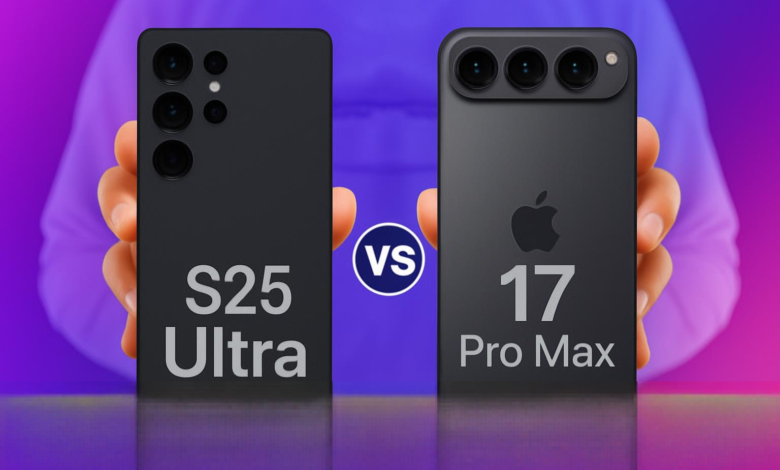
iPhone 17 Pro Max camera is not just a tool for capturing moments; it’s a portable cinema studio. With its revolutionary sensor, computational videography, and pro-grade controls, it empowers anyone to think and shoot like a movie director. This guide will transform your approach from point-and-shoot to purposeful storytelling, unlocking the cinematic potential hidden within your pocket.
Directing Your Vision: Pre-Production with Your iPhone
Every great film begins long before the camera rolls. As a director, your first task is to conceptualize your story. What is the emotional core? Is it a tense thriller, a joyful vignette, or a melancholic portrait? With the iPhone 17 Pro Max camera in mind, sketch a simple storyboard. Use the Notes app to jot down shots: a wide establishing shot, a close-up for emotion, a dynamic tracking shot. Consider your locations and how the iPhone’s portability allows for unique angles—low to the ground, through windows, or in tight spaces. This pre-visualization is crucial; it turns random clips into a cohesive narrative.
Mastering the Cinematic Toolbox: Settings and Modes
The iPhone 17 Pro Max camera interface is your director’s viewfinder. To use it professionally, you must move beyond automatic mode. Open the Camera app and swipe to Cinematic Mode. This isn’t just for portrait video; it’s a powerful tool for directing the viewer’s attention. Use it to create beautiful rack focus transitions, shifting focus from a foreground object to the background subject to reveal story elements. The key is subtlety—adjust the f-stop in post-production (within the Photos app) to fine-tune the depth of field effect.
For ultimate control, third-party apps like Filmic Pro or Blackmagic Camera turn your iPhone into a true cinema camera. These apps unlock manual control over shutter speed, ISO, white balance, and audio levels simultaneously. Here’s a foundational table for manual settings:
| Setting | Cinematic Purpose | Starting Point (Day) | Starting Point (Night) |
|---|---|---|---|
| Frame Rate | 24 fps for filmic look; 30/60 fps for smoothness or slow-mo. | 24 fps | 24 fps (use more light) |
| Shutter Speed | Governs motion blur. The 180-degree rule is key. | 1/48 sec (for 24fps) | 1/48 sec (raise ISO) |
| ISO | Sensor sensitivity. Keep as low as possible to avoid noise. | ISO 32-100 | ISO 500-2000 (balanced) |
| White Balance | Sets color temperature. Lock it for consistency. | 5600K (daylight) | 3200K (tungsten) or auto |
| Focus | Manual focus allows for precise focus pulls. | Auto or tap-to-focus | Manual recommended |
The golden rule: set your shutter speed to double your frame rate (e.g., 1/48s for 24fps) for natural motion blur. Use the lowest ISO your lighting allows, and always lock your white balance to prevent color shifts mid-scene.
Harnessing the Power of the Lenses
The iPhone 17 Pro Max camera system offers multiple focal lengths. Think of them as your lens kit: The ultra-wide is for dramatic, expansive shots or unique distorted perspectives. The main wide lens is your workhorse, perfect for standard scenes and storytelling. The telephoto lenses are for intimate close-ups, details, and compressed backgrounds that make subjects pop. The new periscope telephoto allows for incredibly stable, distant shots that feel like they’re from a spy movie. Don’t just zoom with your fingers; move physically between lenses for the highest quality and distinct visual perspectives.
The Director’s Eye: Composition and Movement
Composition is your language. Apply the rule of thirds (enable the grid in Settings > Camera). Place your subject on intersecting lines for balanced, engaging frames. Use leading lines—roads, fences, architecture—to guide the viewer’s eye. Embrace negative space to create mood or isolation. With the iPhone 17 Pro Max camera, you can also explore advanced compositions like Dutch angles for tension or symmetrical frames for order.
Movement is emotion. A static shot is observational; a moving shot is experiential. Use smooth, intentional motion. The iPhone’s stellar stabilization allows for gorgeous handheld work, but for pro-level moves, invest in a gimbal. Practice these moves: The Push In to emphasize a moment. The Pull Back to reveal context. The Pan to follow action or connect two subjects. The Dolly (side-to-side) to follow a character seamlessly. Let the movement serve the story, not distract from it.
Painting with Light: A Cinematographer’s Guide
Great cinematography is the art of sculpting with light. The iPhone 17 Pro Max camera’s larger sensor performs better in low light, but you must still be the master of light. Seek out soft, diffused light—the “golden hour” just after sunrise or before sunset is a director’s best friend. For indoor scenes, position subjects near windows. Avoid harsh, direct overhead light that creates unflattering shadows.
Use the iPhone’s built-in tools: Tap to set exposure on your subject’s face, then swipe up or down to fine-tune. Lock exposure and focus for a consistent shot. For night scenes, use the improved Night Mode video cautiously—it can create an ethereal, slightly surreal look that works for specific moods, but know it uses computational processing. For the cleanest night shots, add light. A small, portable LED panel can make all the difference, allowing you to shape shadows and highlights like a pro.
Capturing the Scene: Audio and Directing Action
Bad audio ruins great visuals. While the iPhone 17 Pro Max camera has improved microphones, a director knows audio is captured separately. Use an external directional microphone (like a shotgun mic) plugged into the USB-C port for crisp dialogue. For interviews or scenes, consider lavalier mics for clarity. Always monitor audio with headphones. In Filmic Pro, you can set audio levels manually to prevent peaking and distortion. Record ambient “room tone” at each location for clean audio editing later.
Directing subjects, even if it’s just a friend, is key. Give clear, actionable direction: “Walk slowly from here to there, looking down at your phone, then glance up with concern.” Communicate the emotion of the scene. Use the iPhone’s high-resolution screen as a director’s monitor; consider connecting a larger external monitor via USB-C for a true on-set feel for critical shots.
Post-Production: The Final Cut in Your Pocket
The film is made in the edit. The iPhone 17 Pro Max camera captures in stunning ProRes LOG or Dolby Vision, giving you immense flexibility. Use apps like LumaFusion or DaVinci Resolve for iPad (with seamless iPhone integration) to edit. Start by assembling your storyboard clips. Cut on action. Use J-cuts and L-cuts (where audio leads or follows video) for professional flow. Color grading is where your LOG footage shines. Apply a technical LUT to convert the flat profile to Rec. 709, then create your look—desaturated blues for a cold feel, warm amber for nostalgia. Add subtle film grain and vignettes for texture. Finally, layer in your cleaned audio, ambient sound, and a carefully chosen music score to complete the director’s vision.
Frequently Asked Questions
- Do I need extra gear to start filming cinematically with my iPhone 17 Pro Max? No. Start with the native Camera app, mastering Cinematic Mode and manual controls. As you progress, a tripod, an external microphone, and a gimbal will significantly enhance quality.
- What is the best format to shoot in? For most projects, 4K at 24fps in Dolby Vision offers a great balance of quality and manageable file size. Use ProRes LOG only if you plan on doing extensive color grading on a computer.
- How can I make my iPhone video less shaky without a gimbal? Use the built-in stabilization (enabled by default), hold the phone with two hands, tuck your elbows in, and move smoothly from your core. The iPhone 17 Pro Max’s sensor-shift stabilization is exceptionally good.
- Can I use lenses on the iPhone 17 Pro Max camera? Yes, clip-on or magnetic lenses from brands like Moment can provide wider, more macro, or anamorphic (widescreen) looks, expanding your creative toolkit further.
- How do I achieve that classic “film look”? It’s a combination of: shooting at 24fps, using the 180-degree shutter rule, employing thoughtful composition and lighting, color grading for a specific palette, and adding subtle film grain in post-production.
By embracing these principles, the iPhone 17 Pro Max camera ceases to be a smartphone feature and becomes your most versatile and powerful directorial tool. The barrier between idea and execution has never been thinner. Now, go out and direct your masterpiece.