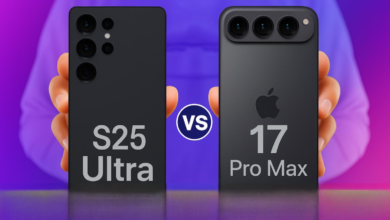
Samsung S26 Ultra speed up is a common quest for users who want to extract every ounce of performance from their flagship device. While the S26 Ultra is a powerhouse out of the box, over time, with countless apps, updates, and digital clutter, even this technological marvel can begin to feel sluggish. Most users are familiar with basic tips like clearing the cache or restarting the phone, but the true potential for optimization lies deeper within the system. This article unveils five hidden, less-explored tricks that can significantly enhance the speed, responsiveness, and fluidity of your Samsung S26 Ultra, transforming your experience from great to exceptional.
1. Master the Galaxy App Booster: A Post-Update Essential
One of the most powerful yet overlooked tools within the Samsung ecosystem is the Galaxy App Booster, part of the Good Guardians module (available via the Samsung Galaxy Store). After every major OS update or even monthly security patches, your apps and the system itself run in a partially compiled state, which can lead to minor stutters and increased battery usage as the phone re-optimizes in the background. The Galaxy App Booster forces a complete re-optimization of all applications and system components for the new software environment.
Here’s how to leverage this hidden gem to speed up your Samsung S26 Ultra:
- Download “Good Guardians” from the Galaxy Store.
- Open it and install the “Galaxy App Booster” module.
- Launch Galaxy App Booster and tap “Optimize Now.”
The process takes a few minutes and requires a restart. The difference is often immediately perceptible, with smoother animations and faster app launches. This is a pro-level trick that goes far beyond standard maintenance.
2. Tame the Animation Scale with Developer Options
Visual animations make the UI feel polished, but they also introduce delay between your input and the action on screen. By reducing or turning off these animation scales, you can create a perception of instant responsiveness, making your Samsung S26 Ultra feel significantly snappier. This requires enabling the hidden Developer Options menu.
To enable Developer Options: Go to Settings > About phone > Software information and tap “Build number” seven times. You’ll see a confirmation message.
Now, navigate to Settings > Developer Options (usually at the bottom of the main Settings menu). Scroll down to the “Drawing” section. You will find three key settings:
| Setting | Default Value | Recommended Value for Speed | Effect |
|---|---|---|---|
| Window animation scale | 1x | 0.5x or Off | Speeds up window transition animations. |
| Transition animation scale | 1x | 0.5x or Off | Speeds up transitions between elements. |
| Animator duration scale | 1x | 0.5x or Off | Speeds up animators (like button ripples). |
Adjusting these to 0.5x cuts animation times in half, while turning them “Off” removes the delay entirely. This is a guaranteed method to speed up the perceived performance of your device, making every interaction feel direct and immediate.
3. Declutter with Enhanced RAM Plus & Background Limits
The Samsung S26 Ultra comes with abundant physical RAM. However, Samsung’s RAM Plus feature uses a portion of your internal storage as virtual RAM. While helpful for multitasking, if you’re using slower storage or have it set too high, it can sometimes introduce lag. Conversely, fine-tuning background processes can free up real RAM for immediate tasks.
Optimize RAM Plus: Go to Settings > Battery and device care > Memory. Here you can see RAM Plus settings. Experiment with turning it off or setting it to a lower value (like 2GB) to see if performance improves. For users who rarely max out their physical RAM, disabling it can sometimes yield a smoother experience.
Set Strict Background Limits: Return to Developer Options and scroll to “Apps.” Find the following settings:
- Background process limit: Change from “Standard limit” to “At most 4 processes.” This prevents too many apps from running in the background simultaneously, freeing up crucial resources for the app you’re actively using.
- Standby apps: While in Developer Options, you can also check that non-essential apps are in “Restricted” or “Optimized” standby buckets, ensuring they don’t wake up unnecessarily.
This combination manages both virtual and physical memory resources aggressively, a key strategy to speed up your Samsung S26 Ultra during intensive use.
4. Unleash Maximum GPU Performance for UI Rendering
This is a truly hidden trick that forces the phone to use its powerful GPU (Graphics Processing Unit) for all 2D UI rendering, rather than offloading some work to the less powerful CPU. It’s particularly effective if you experience occasional frame drops or stutters in the user interface, even when simple tasks are performed.
Warning: This may have a minor impact on battery life, as the GPU consumes more power than the CPU for graphics tasks. However, the trade-off for absolute fluidity is worth it for many power users.
To enable this:
- Ensure Developer Options are enabled (see Trick #2).
- Navigate to Settings > Developer Options.
- Scroll down to the “Hardware accelerated rendering” section.
- Find the setting titled “Force GPU rendering” or “Enable 4x MSAA” (for OpenGL ES 2.0 games).
- Toggle “Force GPU rendering” ON.
This instructs the system to use the GPU for all interface drawing. The result is often a buttery-smooth experience when scrolling through web pages, social media feeds, and even the app drawer. It’s a direct line to harnessing the raw graphical power of your device to speed up visual feedback.
5. The Nuclear Option: Factory Reset with Smart Switch
When all else fails, or if your phone has accumulated years of digital detritus, a factory reset is the most thorough way to speed up your Samsung S26 Ultra. The “hidden” aspect of this common advice lies in the methodology. A simple reset and restore from a cloud backup can often reimport old problems. The pro method involves using Samsung’s Smart Switch software to perform a selective, clean restoration.
This process ensures you only bring back what you truly need, avoiding the restoration of corrupted app data or system settings that may be causing slowdowns.
| Step | Action | Purpose |
|---|---|---|
| 1. Preparation | Back up ONLY personal media (photos, videos, documents) to a PC or cloud service. Note down your essential app logins. | Preserves irreplaceable data. |
| 2. Smart Switch Backup | Connect to a PC, use Smart Switch to create a full backup. This is your safety net. | Creates a complete device snapshot. |
| 3. Factory Reset | Go to Settings > General management > Reset > Factory data reset. | Wipes the device completely clean. |
| 4. Fresh Setup | Set up the phone as new. Do NOT restore from any backup during initial setup. | Ensures a clean OS install. |
| 5. Selective Restoration | Reinstall apps manually from the Galaxy/Play Store. Use Smart Switch on PC to restore ONLY specific data categories (e.g., Call logs, Messages, Contacts) if needed. Avoid restoring “Settings” or “App” data. | Brings back functionality without the potential bloat/corruption. |
This method is time-consuming but is guaranteed to return your Samsung S26 Ultra to its out-of-the-box blazing speed, as it eliminates all software-related bottlenecks.
Conclusion: A Faster, More Responsive Experience Awaits
Optimizing your Samsung S26 Ultra speed up journey doesn’t end with clearing recent apps. By diving into the advanced tools Samsung provides—like the Galaxy App Booster and Developer Options—you gain unprecedented control over your device’s performance. From fine-tuning animations and GPU rendering to intelligently managing memory and performing surgical resets, these five hidden tricks empower you to combat slowdowns at their root. Implement them step-by-step, and you will unlock a level of speed and smoothness that truly matches the flagship pedigree of your Samsung S26 Ultra, ensuring it remains a responsive companion for years to come.
Frequently Asked Questions (FAQs)
- Will using these tricks void my warranty? No. Enabling Developer Options and adjusting the settings mentioned are built-in Android features intended for user customization. They do not involve rooting or modifying system partitions, so your warranty remains intact.
- How often should I use the Galaxy App Booster? Ideally, use it once after every major software update (e.g., from Android 15 to 16) or quarterly if you install/uninstall apps very frequently. There’s no harm in running it monthly for optimal performance.
- Is “Force GPU rendering” safe for my phone long-term? Yes, it is safe. Modern GPUs are designed to handle rendering workloads. The only potential downside is a slight increase in power consumption, which may reduce battery life by a small margin.
- What is the single most effective trick for immediate results? For most users, reducing the three animation scales in Developer Options to 0.5x provides the most instantly noticeable improvement in perceived speed.
- After a factory reset, should I avoid using Smart Switch entirely? Not necessarily. Smart Switch is excellent for transferring personal files, contacts, and messages. The key is to avoid restoring “App” and “System Settings” data, as this can re-introduce the very issues you’re trying to fix. Manually reinstalling apps is the best practice.